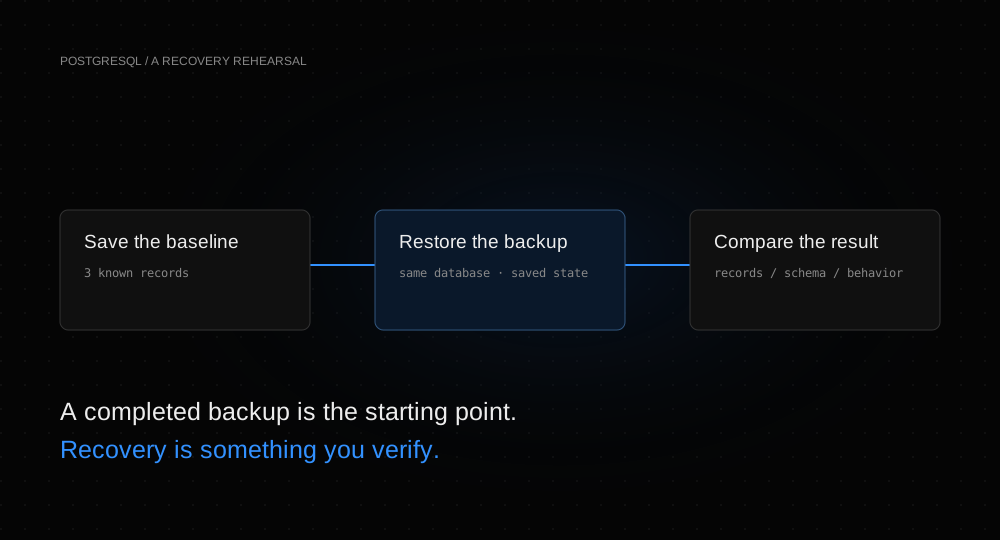
A backup becomes useful when you know how to recover from it. This guide takes three fictional PostgreSQL records through that full loop: save a backup, change one row, delete another, restore, and compare the result with the original data.
You will also check two details that matter during an incident: a table created after the backup can survive restoration, and another manual backup can replace your earlier recent restore point. Knowing those boundaries helps you choose a recovery procedure before you need it.
Before you start
You need a Helicarrier workspace with permission to create and manage a database, and a project reserved for experiments. Use a new, empty database for this guide. Its restore action writes into that same database; it does not create a separate recovery service.
Our project was Helicarrier Tutorials Demo. Its default environment is named Production, but it holds only disposable tutorial resources. Choose your own isolated project and environment, and check the service name before every query and restore.
From New service → Database → PostgreSQL, create tutorial-postgres-backup using PostgreSQL 16. Leave the generated password private. We used the default database name app and username postgres, with Heli DB-S1: 512 MB of memory and 2 GB of storage. Select Provision, then Apply if the canvas stages the change. Wait for active.
The standard full-month reference rate was $3.50 for compute and storage. The optional daily-backup add-on would add $0.10 at this storage size under the checked standard catalog; we left it off for this short manual exercise. Your dashboard shows your account’s current price. See PostgreSQL plans and platform pricing. Keep external database access off: the dashboard’s data tools work without exposing the database to the internet.
1. Create a baseline you can compare
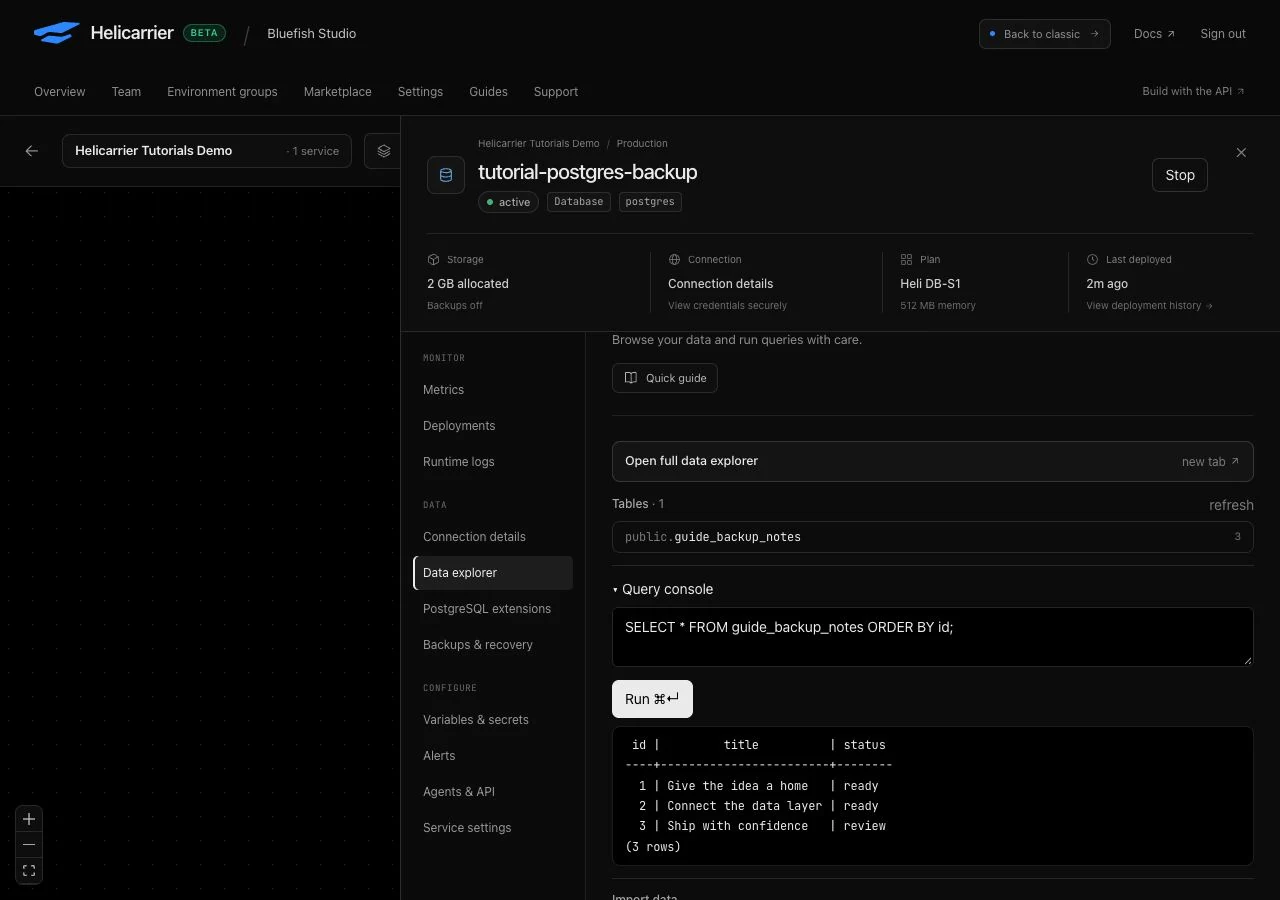
Open tutorial-postgres-backup, select Data explorer, and expand Query console. Run this once in the empty tutorial database:
BEGIN;
CREATE TABLE guide_backup_notes (
  id integer PRIMARY KEY,
  title text NOT NULL,
  status text NOT NULL CHECK (status IN ('ready', 'review'))
);
INSERT INTO guide_backup_notes (id, title, status) VALUES
  (1, 'Give the idea a home', 'ready'),
  (2, 'Connect the data layer', 'ready'),
  (3, 'Ship with confidence', 'review');
COMMIT;
Then replace the editor contents with this read-only query and select Run:
SELECT * FROM guide_backup_notes ORDER BY id;You should see three rows with IDs 1, 2, and 3. The second title should be Connect the data layer; the third should be Ship with confidence. Keep this result for comparison. Select the table list’s refresh control if it has not yet picked up the new table.
2. Create one manual backup
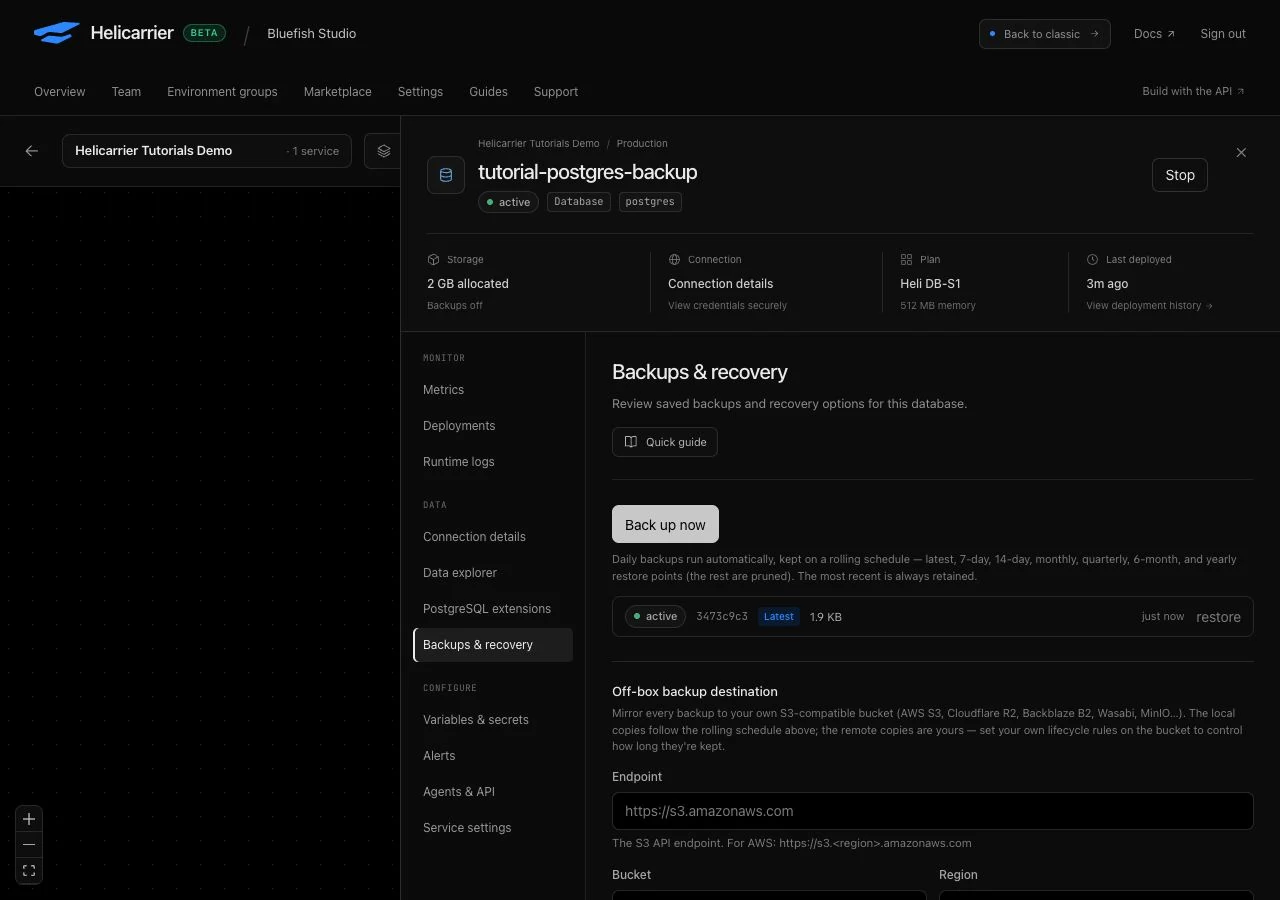
Open Backups & recovery and select Back up now once. Wait until a completed entry appears with a size and a restore action. In the interface we tested, a completed backup uses a green active badge; the customer API reports its status as complete.
Record the displayed backup ID and when you created it. For exact timestamps, the customer List backups API includes creation and completion times. Our first archive was 1,950 bytes and displayed as 1.9 KB, with the Latest retention label. Your ID, size, and timing will differ.
3. Change only the disposable sample
Return to Data explorer → Query console. This transaction changes row 2, removes row 3, and creates a small marker table after the backup. Run it only in the tutorial database you just created:
BEGIN;
UPDATE guide_backup_notes
SET title = 'Changed after the backup', status = 'review'
WHERE id = 2;
DELETE FROM guide_backup_notes WHERE id = 3;
CREATE TABLE guide_after_backup (note text PRIMARY KEY);
INSERT INTO guide_after_backup VALUES ('Created after the backup');
COMMIT;
Run the same verification query again:
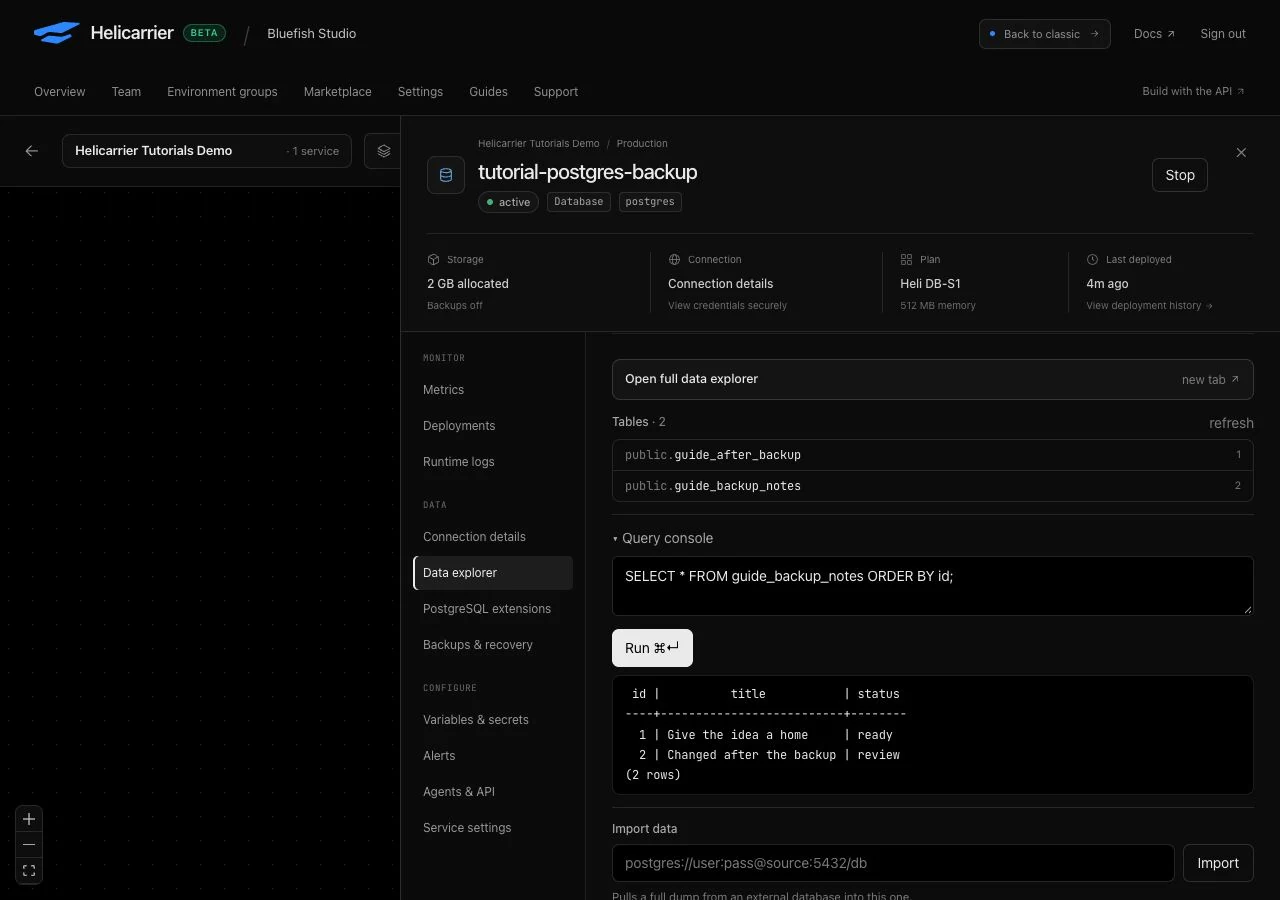
SELECT * FROM guide_backup_notes ORDER BY id;There should now be two rows. Row 2 reads Changed after the backup, and row 3 is absent. Refresh the table list to see guide_after_backup as well. This marker lets us check whether restoration removes objects that were never in the archive.
4. Restore, then query the result
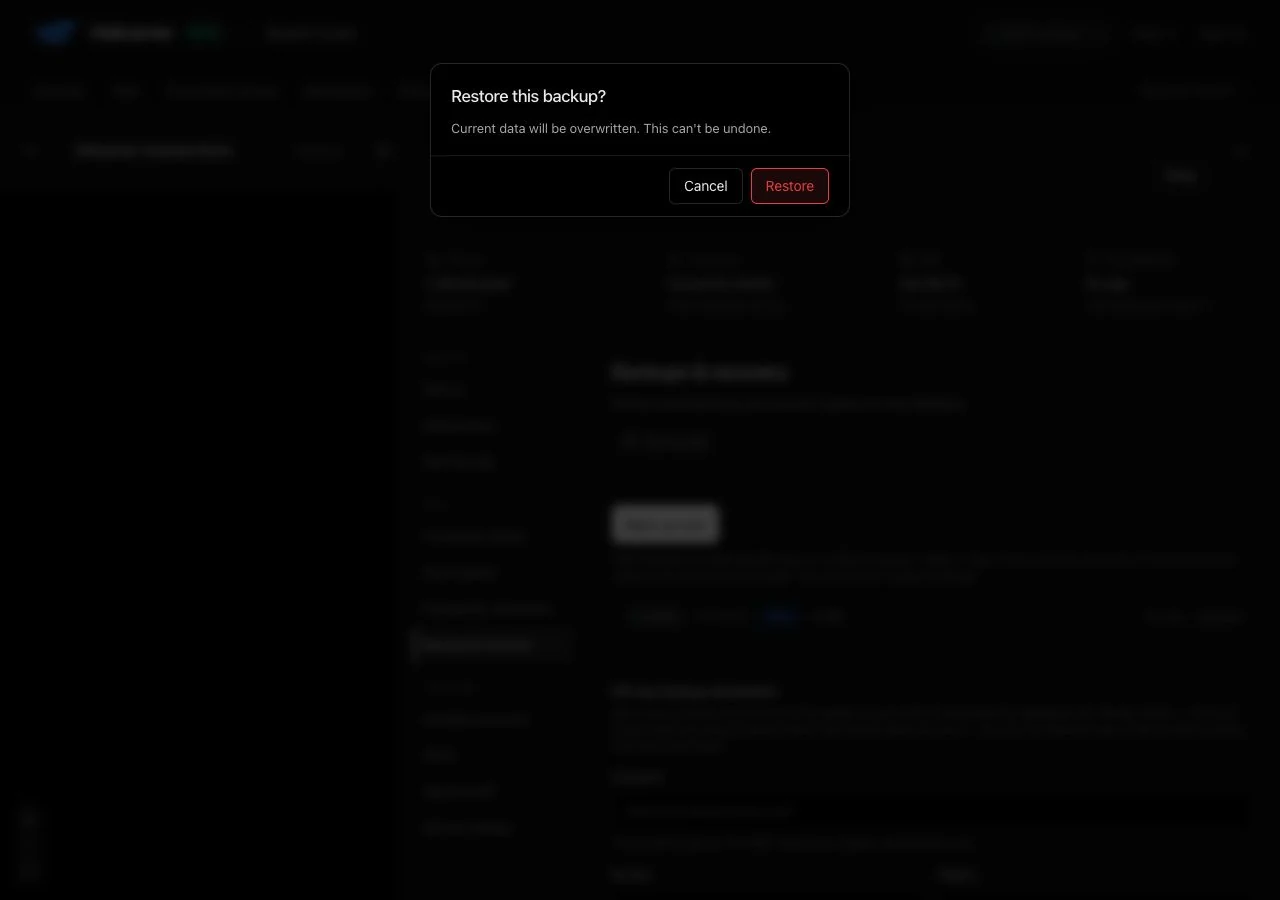
Open Backups & recovery. Check the service name and the ID of the backup from step 2, then select its restore action. Read the confirmation before choosing Restore.
This overwrites data in the selected database. Our isolated database has no application, worker, or scheduled job writing to it. For a real service, stop conflicting writers and establish a verified fallback before restoring; see the recovery checklist below.
After the restore succeeds, return to Data explorer → Query console and run the original query:
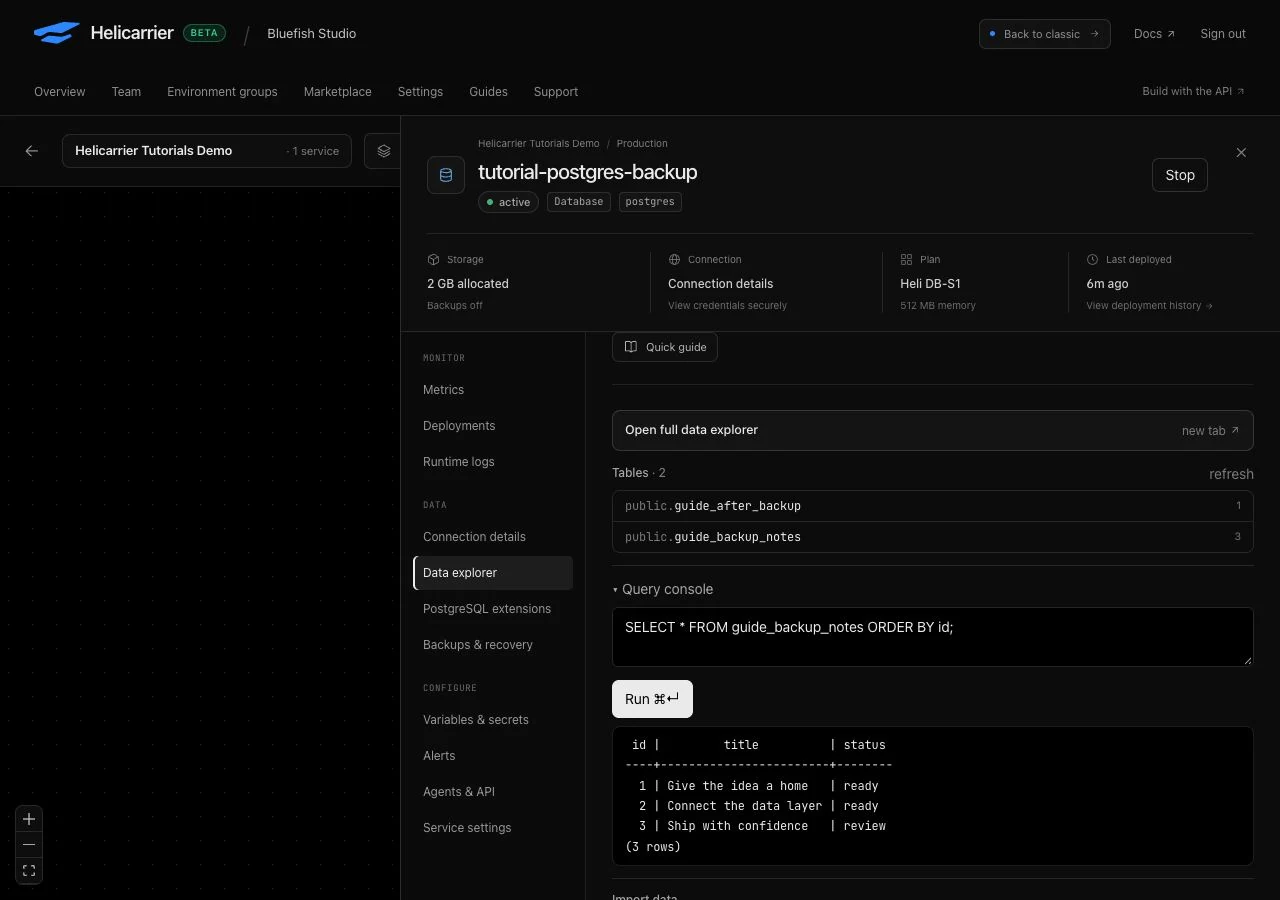
SELECT * FROM guide_backup_notes ORDER BY id;Check the values, not only the row count. IDs 1–3 should be present, row 2 should again say Connect the data layer, and row 3 should again say Ship with confidence. The statuses should be ready, ready, and review.
Now inspect the marker:
SELECT * FROM guide_after_backup;It still contains Created after the backup. Helicarrier’s PostgreSQL restore cleans and recreates objects contained in the archive; it does not drop and recreate the whole database. A table absent from the archive can remain. PostgreSQL’s pg_restore documentation describes this behavior for the clean option.
We also verified that the restored sample retained its primary key and status check constraint. For your application, check the actual schema, representative records, constraints, sequences, and application reads and writes. A successful restore request alone is not an application recovery test.
5. Understand which restore points remain
Once you have finished comparing the recovered data, return to Backups & recovery and create a second manual backup. In our test, the new archive was 2,820 bytes and became Latest. The first backup disappeared from the local history.
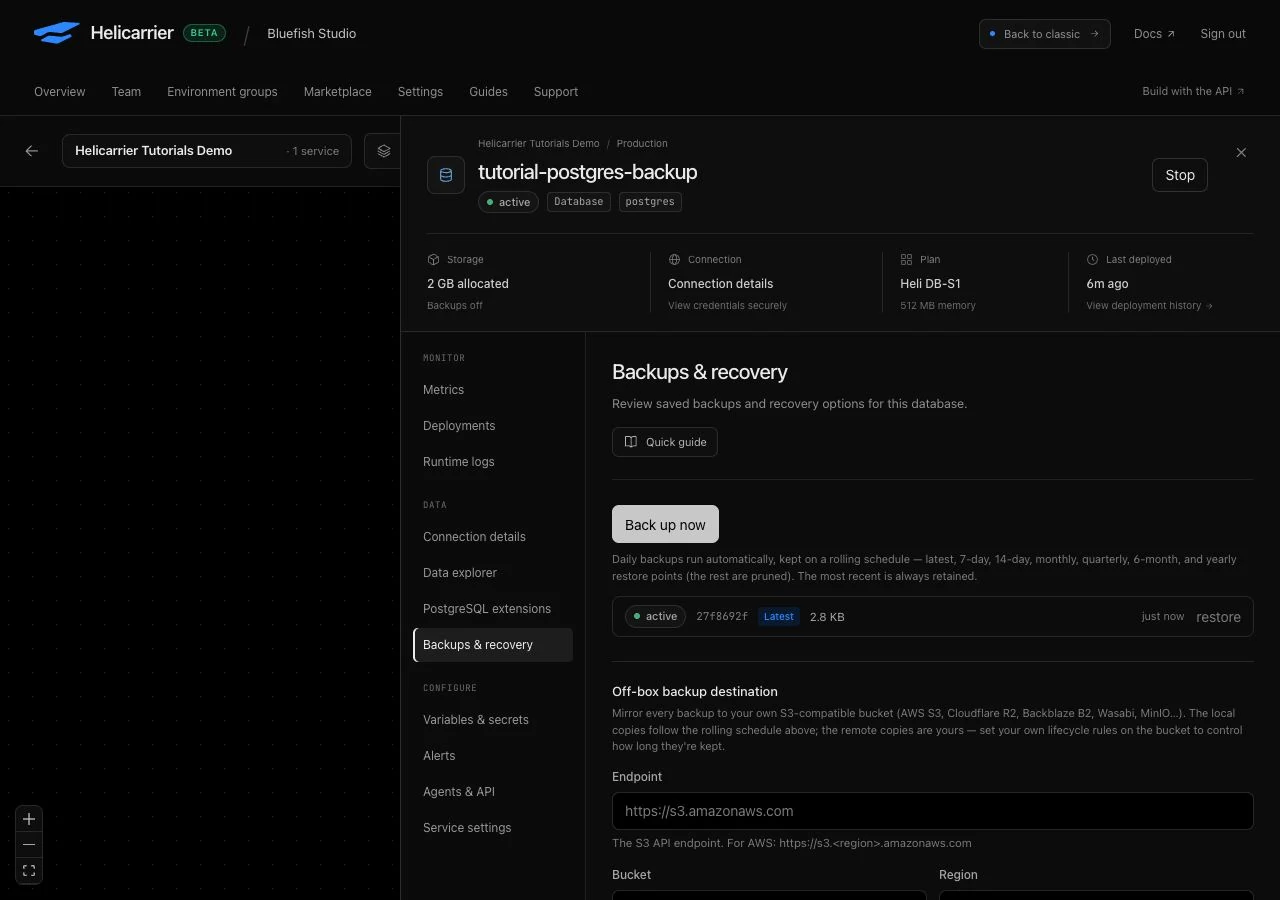
The rolling policy retains the newest successful backup and eligible points at 7-day, 14-day, Monthly, Quarterly, 6-month, and Yearly horizons. An eligible point must be at least as old as its horizon. One backup may satisfy more than one horizon.
That means at most seven successful local restore points, not one backup for every day of a year. For a database created today, earlier backups from today usually do not qualify for an older horizon. Both manual and scheduled backups use this retention policy. We verified immediate replacement live; the older horizons are documented policy, not a year-long test.
Plan a recovery beyond this exercise
- Choose the recovery point. Check the exact backup identity, age, completion status, and data it should contain. This dump-based workflow is not continuous point-in-time recovery to an arbitrary second.
- Preserve your options. The current panel restores into the source database and has no target-service picker. For an isolated production recovery rehearsal, arrange and verify a separate export/restore workflow first.
- Plan the write freeze. Stop or pause application writers, workers, and scheduled jobs during restoration. Account for writes made after the backup, and decide whether they need reconciliation.
- Check capacity and compatibility. Allow room for the restored data and indexes, confirm required extensions and versions, and rehearse with a representative data size. Our tiny test does not establish a recovery-time guarantee for a large database.
- Handle incomplete recovery deliberately. Do not assume a failed restore is atomic or rolls itself back. Keep writers stopped, inspect the error and current data, and use the tested recovery plan.
- Verify before reopening traffic. Compare schema and records, run application checks, then resume writers and monitor. An app deployment rollback changes code; it does not restore database data.
The Off-box backup destination section supports mirroring new backups to your own S3-compatible storage, with retention controlled in that bucket. We did not configure or test external storage in this exercise. The current local-backup panel does not provide a direct Download button. For PostgreSQL exports outside that flow, use a separately planned and tested pg_dump and restore procedure; protect its credentials and archive as you would the source data.
Inspect backups with your coding agent
Helicarrier’s customer MCP tools can list backups and query the database. With an authorized agent connection, ask for a specific read-only check:
In my disposable project and selected environment, find
tutorial-postgres-backup. List its completed backups, including
IDs and exact timestamps, and report the rows in guide_backup_notes.
Do not create a backup, change data, or restore anything.
Review the resolved project, environment, service, and backup before separately authorizing a restore. An agent needs the appropriate access for each action. The customer API also documents Create backup, List backups, and Restore backup. Use the structured result to confirm completion; keep internal paths, credentials, and unrelated data out of shared reports.
If the result differs
| What you see | What to check |
|---|---|
| No tables after seeding | Refresh the table list and run the SELECT query. Confirm the selected service and inspect the seed query’s result. |
| The sample table already exists | You may have run the seed twice or selected an existing database. Do not drop an unfamiliar table. Start with a fresh disposable database. |
| A backup is running or failed | Wait for a completed entry before continuing. Inspect the failure and service health; a started request is not a usable restore point. |
| The expected backup disappeared | Check whether another successful manual or scheduled backup replaced it under rolling retention. Use an independently verified copy if available. |
| Three rows return but values differ | Compare IDs, titles, and statuses with the baseline. Confirm which backup was restored and whether another process is writing. |
| A newer table is still present | Objects absent from the archive are not necessarily removed. Inspect the full schema rather than treating restore as a whole-database rewind. |
Remove the rehearsal database
When you have finished, delete only tutorial-postgres-backup from the disposable project using its service settings. Check that no tutorial service remains running. We verified that our project had zero services and zero references after cleanup. Do not delete a database that contains data you need to retain; establish a verified export first.
Next, review the backup and restore reference, connect an application through a private service reference, or follow the Next.js and PostgreSQL deployment guide.