A report, a document conversion, or a scheduled sync can outlast an HTTP request. A queue gives your application somewhere to put that work; a separate worker processes it independently.
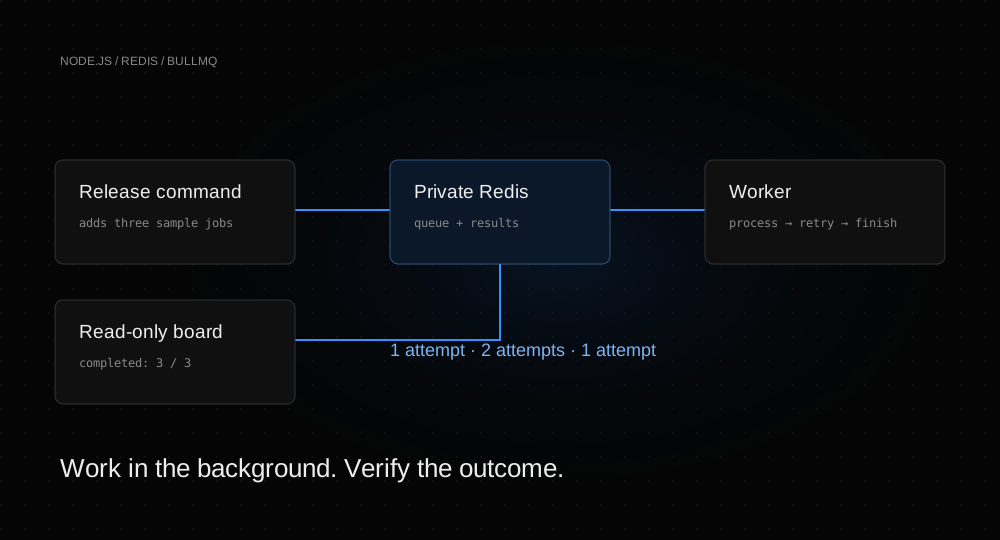
In this guide, you will deploy three services: Redis to hold a queue, a Node.js worker to process three fictional reports, and a small web dashboard to show their results. One report deliberately fails once and then succeeds. You will verify the retry and repeat the deployment without adding duplicate reports.
Before you start
- A Helicarrier workspace where you can create a disposable project and three services.
- A GitHub account and a fork of the Redis worker example. Give Helicarrier’s GitHub connection access to your copy.
- A few minutes to follow deployment logs and check the completed jobs. A successful image build alone does not prove that a worker is processing anything.
Keep all three services in the same project and environment. Our project is named Helicarrier Tutorials Demo; its default environment, Production, contains only disposable tutorial resources.
The example uses Heli KV-N for Redis (256 MB) and Heli S1 for each application (512 MB each). Standard full-month reference rates are $2 + $3 + $3, or $8/month combined, before applicable fees, taxes, or optional resources. A short tutorial run is not a full-month quote. Check your account’s displayed prices before creating resources, and remove them when finished. See the Redis plans and platform pricing.
The public dashboard only reads known sample results. It has no public enqueue or queue-management endpoint, contains no customer data, and makes no external calls from its report processor. This keeps the exercise small and safe to repeat.
1. Create a private Redis database
Open your project and choose New service → Databases → Redis. Name it tutorial-queue-redis, choose version 8, and select Heli KV-N. Leave the password field empty so Helicarrier generates one.
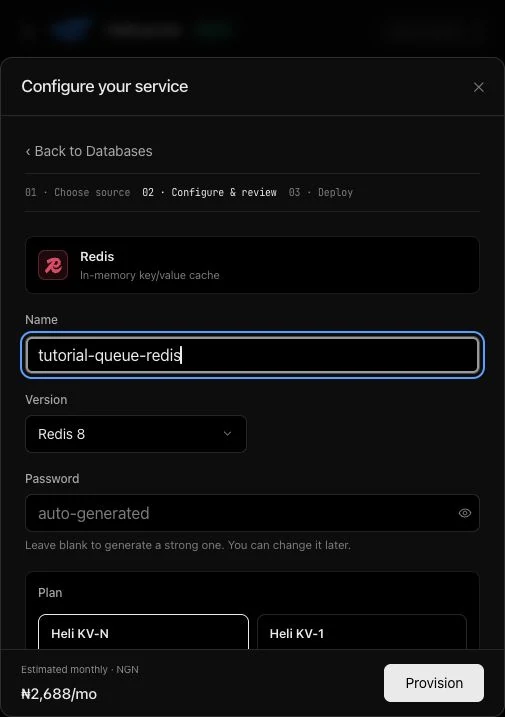
Select Provision, then Apply to apply the staged change. Wait for the database to become active. Keep external access disabled: both applications will connect through private service references.
The example reads maxmemory-policy at startup and requires noeviction. It does not change Redis settings. A cache eviction policy can remove keys that a queue needs, so use a dedicated queue database with the appropriate policy. This follows BullMQ’s production guidance.
2. Deploy the background worker from GitHub
Choose New service → Deploy from source → GitHub. Select your fork, or use Or paste URL to enter its GitHub URL. Choose the main branch and set Service type to Background worker.
| Setting | Value |
|---|---|
| Name | tutorial-report-worker |
| Plan | Heli S1, one instance |
| Root directory | Leave blank for the standalone example |
| Build strategy | Auto, which detects the included Dockerfile |
| Install, build, and start overrides | Leave blank |
| Release command | Leave blank on the worker |
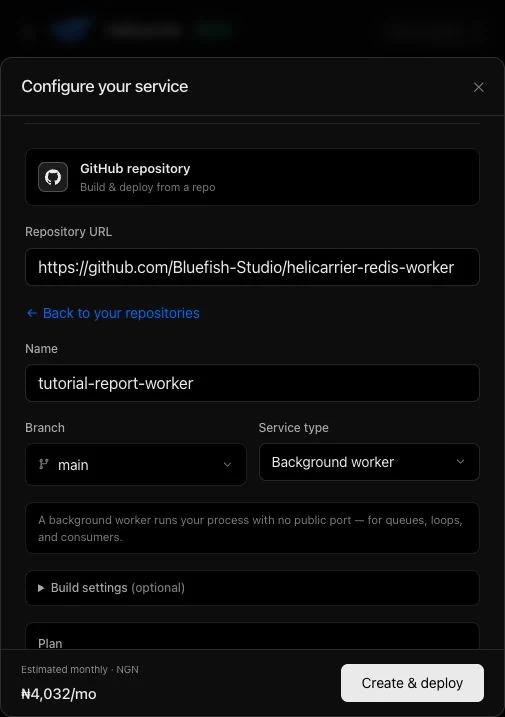
Select Create & deploy, then Apply. The first container cannot start correctly until its role and database reference are configured. Open Variables & secrets, set SERVICE_ROLE to worker, and save it.
In the same section, select Reference a variable from another service. Choose tutorial-queue-redis, choose Connection URL, and name the variable REDIS_URL. Select Add reference, then Deploy.
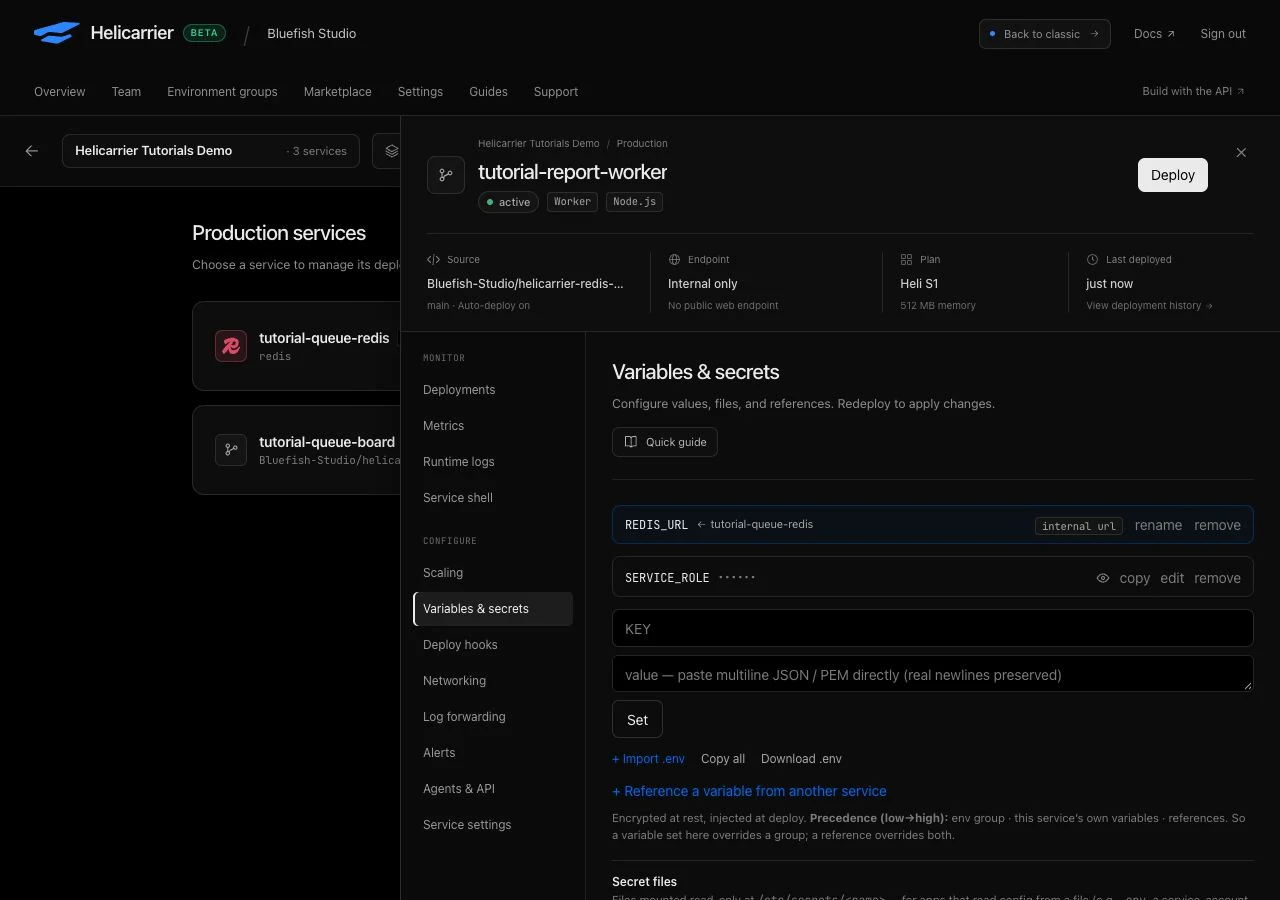
Open Runtime logs and look for Report worker ready. No HTTP listener is required. The service should have no public domain. Do not rely on the active badge alone: during our initial setup, the service showed active while its unconfigured process was restarting.
Keep the default read-only filesystem enabled. The image runs as a non-root user and stores queue state in Redis. Both applications must use the same queue prefix; the example defaults to helicarrier-guide. You do not need to set that variable for this walkthrough.
3. Add the dashboard and queue the reports
Create another GitHub service from the same repository and branch. Name it tutorial-queue-board, choose Web service, use Heli S1, and set the internal port to 3000. Leave the root directory and command overrides blank. Select Create & deploy, then apply the change.
In the web service’s Variables & secrets, set SERVICE_ROLE=web and add its own private REDIS_URL reference to tutorial-queue-redis. Each consuming service needs a reference; the worker’s reference is not inherited by the web service.
Open the web service’s Service settings. Choose Force Dockerfile, set the Dockerfile path to Dockerfile, and set the Release command to:
npm run seed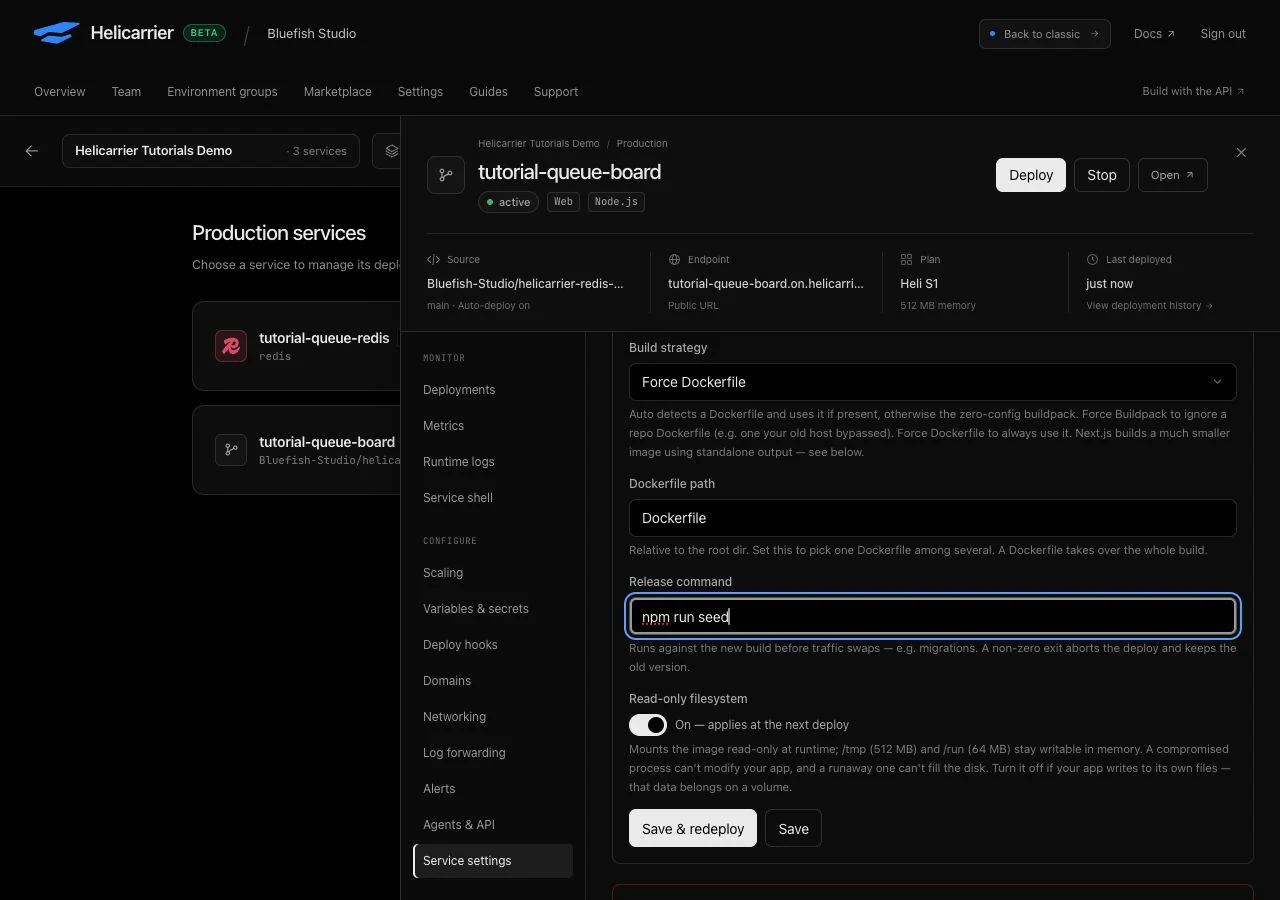
Select Save & redeploy. Follow the deployment logs and confirm that the release command succeeds. The image build needs no Redis connection; the release command receives it from the private reference.
Running release command: npm run seed
Release command succeeded.
The seed uses three fixed job IDs. Running it again leaves retained jobs in place instead of creating another three reports. Once a job is removed, its ID can be reused; this is a bounded demonstration of repeatable seeding, not permanent protection against duplicate business actions.
4. Verify completion and the retry
Open the web service’s generated URL from its overview. Expect 3 / 3 completed, with these results:
| Report | State | Attempts | Units |
|---|---|---|---|
| Launch report | completed | 1 | 24 |
| Retry demonstration | completed | 2 | 12 |
| Usage report | completed | 1 | 36 |
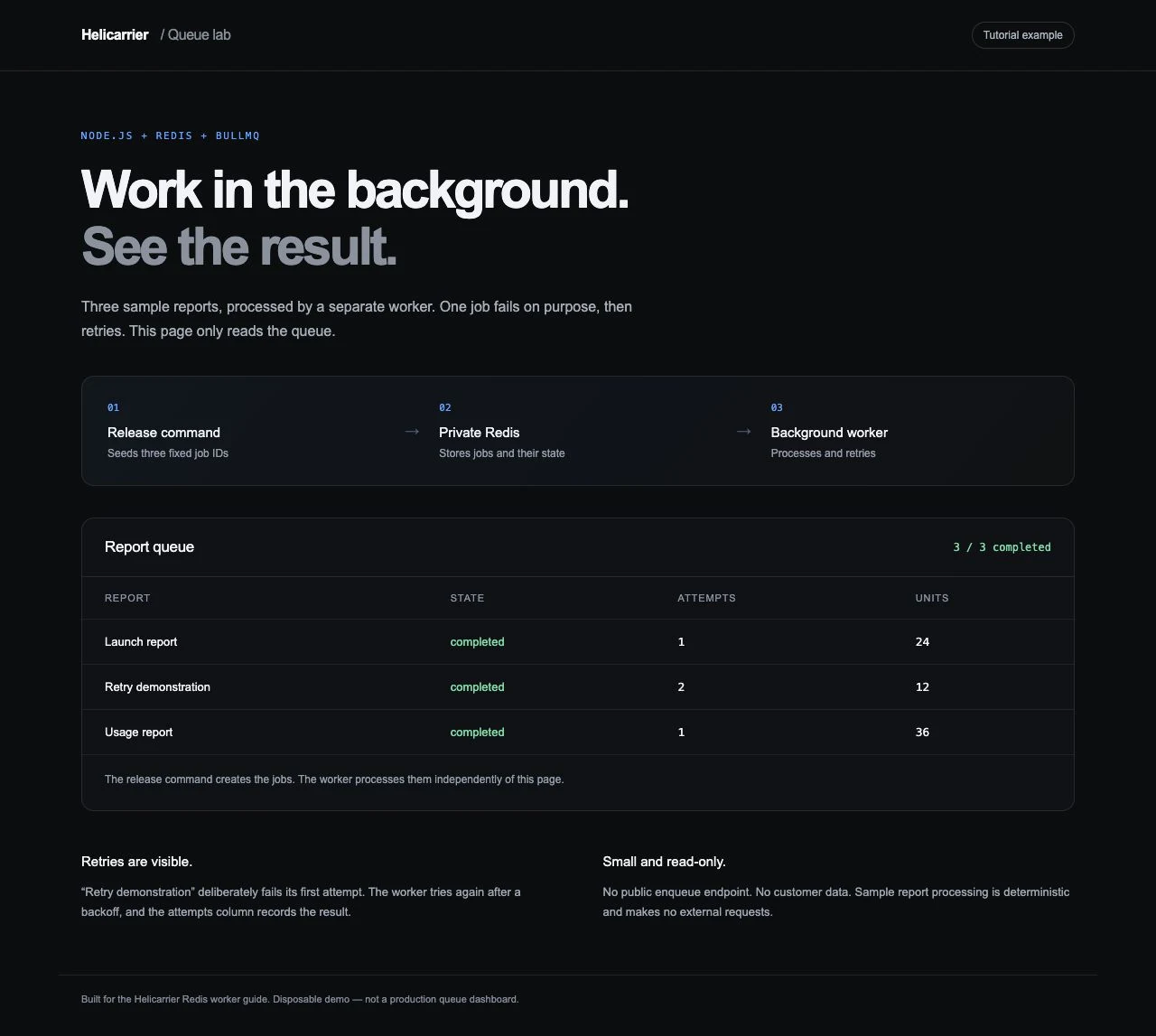
The worker processes one job at a time. The retry report deliberately throws on its first attempt. The queue allows three attempts, with exponential backoff starting at 1.5 seconds. Read BullMQ’s retry documentation before choosing delays for your own workload.
Return to the worker’s Runtime logs and filter for retry-report. You should see the first attempt start and fail, then the second attempt start and complete.
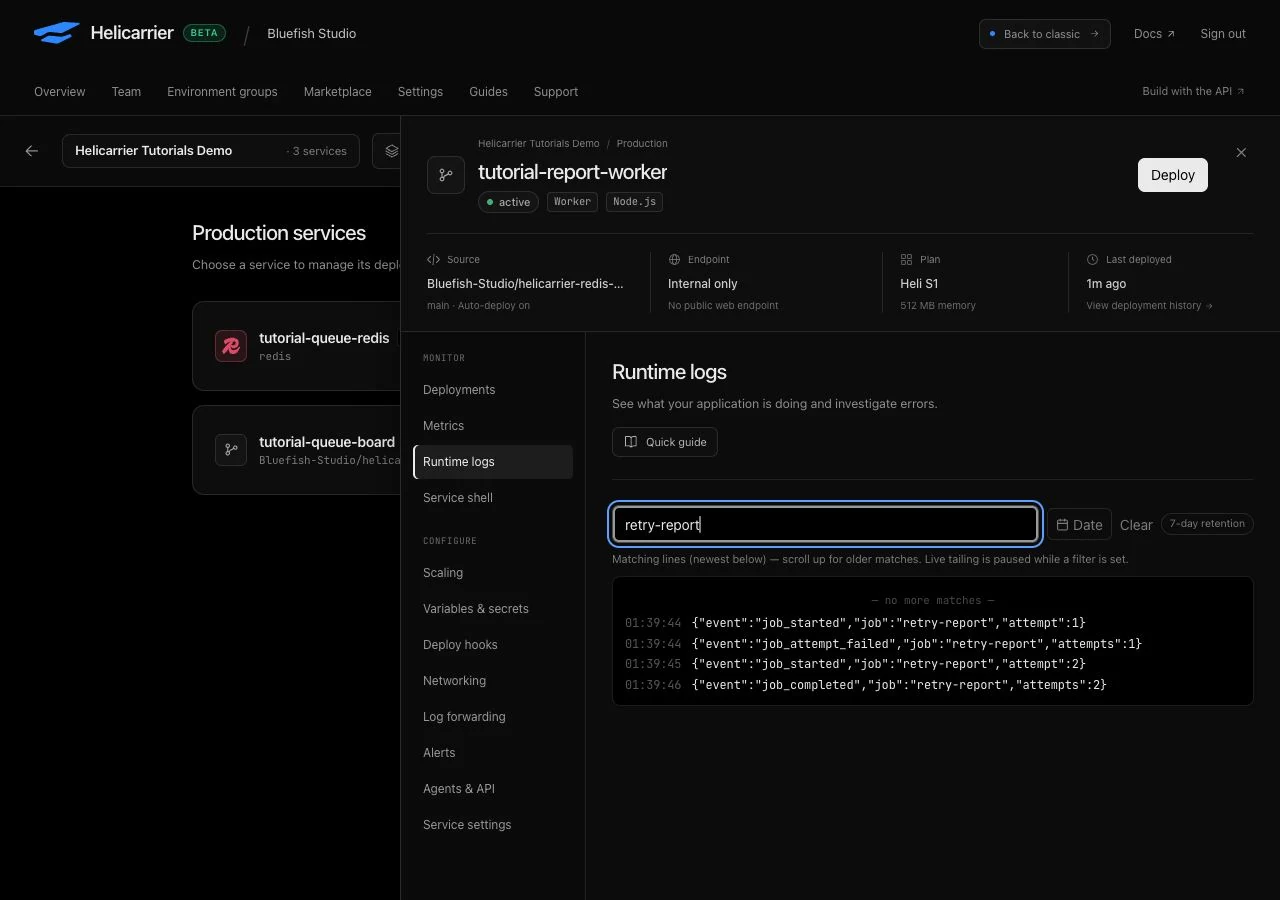
Check the dashboard’s readiness endpoint, replacing the placeholder with your service’s URL:
curl --fail https://YOUR-SERVICE.on.helicarrier.xyz/health
# Expected: {"ok":true}Under the web service’s Service settings → Health checks & auto-recovery, enable automatic checks, set the path to /health, keep the interval at 30 seconds and failure threshold at 3, then save. These checks can restart the web process after failures; they cannot fix a stopped worker.
Finally, deploy both applications again without changing the queue configuration. The release command should succeed and the same three reports should remain, with attempt counts 1, 2, and 1. We checked this after a GitHub commit that improved the dashboard’s mobile layout. This verifies a worker replacement and repeated seed while Redis stays running.
5. Decide what must survive a failure
Our Redis instance returned noeviction, appendonly=no, and an RDB snapshot schedule. Snapshots can omit writes made since the last snapshot. The current Helicarrier Redis plans also lack the daily-backup add-on available to supported relational databases. A successful worker redeploy does not establish recovery from a Redis restart or lost queue data.
Redis also reported maxmemory=0; the service’s memory limit still applies. Bound job history, watch backlog and memory use, and plan capacity. The sample retains up to 20 completed and 20 failed jobs. That history is a debugging aid, not a durable audit log. See BullMQ’s retention options.
For valuable work, keep business state in a durable system of record and design a way to replay or reconcile unfinished jobs. Real jobs can run more than once after interruptions. Use durable idempotency keys for effects such as payments and emails; the example’s fixed queue IDs do not provide exactly-once delivery.
The example handles SIGTERM and SIGINT, closes the HTTP server or waits for its current short job, and closes Redis connections. It has a 15-second shutdown deadline. Longer jobs need their own shutdown and interruption tests. Read BullMQ’s graceful-shutdown guidance.
If a step fails
- Startup keeps failing: check that Redis is active, the consuming service has
REDIS_URL, itsSERVICE_ROLEis correct, and you deployed after changing those settings. The startup check must also be allowed to read the Redis eviction policy. - The page loads but jobs wait: check the worker’s runtime logs and ensure both services use the same Redis database and queue prefix. The web health check cannot detect this problem.
- No jobs appear: check that the web service’s
npm run seedrelease command succeeded. Opening the dashboard never creates jobs. - The retry report stays failed: inspect current worker logs and configuration. The intentional failure should happen only on the first attempt.
- A second release adds no new reports: that is expected while the three fixed IDs remain. Do not remove production jobs to repeat a tutorial.
- Memory keeps growing: review job size, retention, backlog, and worker throughput. More memory does not solve a producer that continually outruns its consumers.
When using support, share the failing step and a sanitized error. Keep connection strings, passwords, and keys out of screenshots.
Clean up, or adapt the example
For a disposable exercise, remove tutorial-queue-board, then tutorial-report-worker, then tutorial-queue-redis through each service’s Service settings → Remove service action. Verify each name and check the project for remaining tutorial services. Removing Redis removes the queue data; export anything you need first and never remove a shared database.
We removed all three test services after recording the results. The repository includes local Docker Compose instructions and integration checks if you want to continue locally. Next, learn how to deploy an application with PostgreSQL or inspect a deployment through a scoped coding agent.