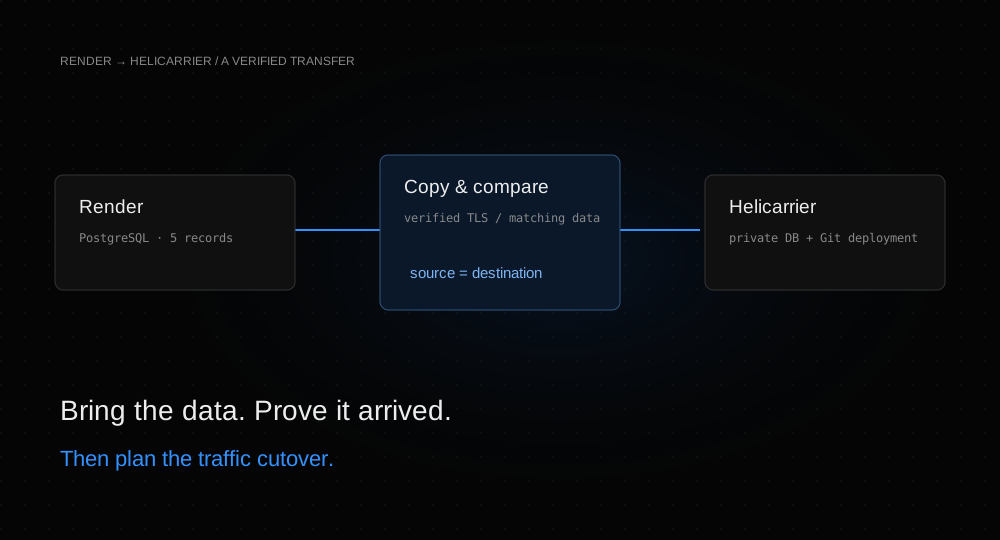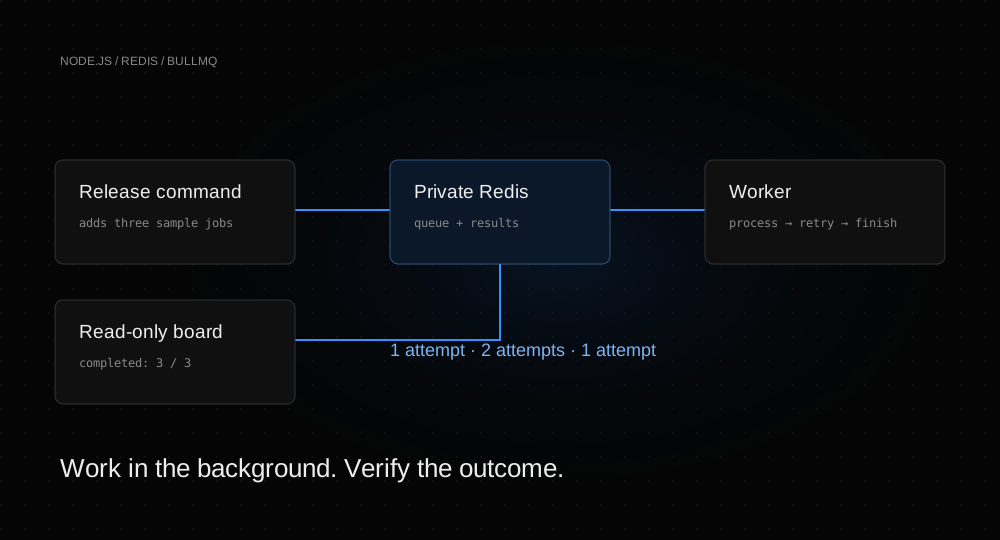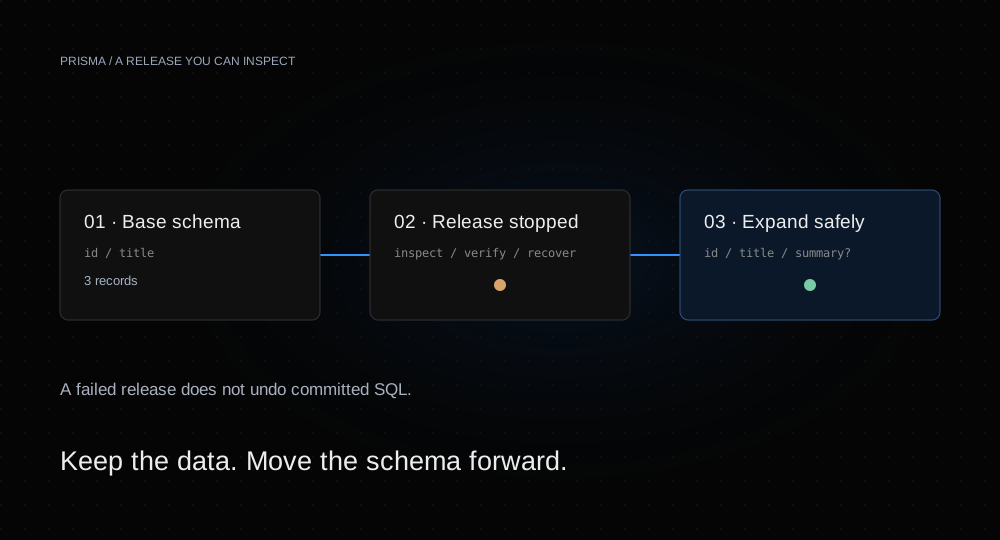
A migration can fail after the application builds successfully. The useful question is what happens next: which version is serving requests, what changed in the database, and whether retrying is safe.
This walkthrough uses three fictional records and three Git tags. First, deploy a working app. Then attempt a deliberately invalid migration. Finally, inspect the failure and add a nullable column with a backfill. You will verify the running app and the database at every stage.
Before you start
You need a Helicarrier workspace that can create services and a GitHub account with a copy of the Prisma migration example. Make sure Helicarrier’s GitHub connection can access your copy, including the three tutorial tags. If your copy does not include them, fetch and push the tags before continuing.
The example uses Node.js 22, Prisma 7.10.1, and PostgreSQL 16. Its page only reads the three sample records; it has no public write endpoint. The Dockerfile generates Prisma Client while building the image, without requiring a database credential. Prisma’s CLI remains in the runtime image for the release command.
We verified the baseline, failed migration, and recovery on a managed PostgreSQL 16.14 database in Helicarrier. Setup and the first releases used the platform’s MCP tools; the dashboard screenshots show the actual services, and we ran the inspection command and selected the recovery tag through the dashboard. The example’s CI separately checks migration behavior and the read-only Docker runtime.
| Tag | Change | Expected result |
|---|---|---|
01-baseline | Create the table and three rows | The board reads the base schema |
02-failed-migration | Add a required column without values for existing rows | The release fails |
03-add-summary | Add a nullable column and backfill the sample rows | The board displays the summaries |
The repository’s default branch contains the corrected app. Disable auto-deploy and follow the tags in order to reproduce the failure. The screenshots use the optional new dashboard experience.
1. Create PostgreSQL and connect the app
Open a dedicated project. Choose New service → Databases → PostgreSQL. Name the service tutorial-prisma-postgres, choose version 16, and use guide as the username and helicarrier_prisma_guide as the database name. Leave the password blank for automatic generation; no optional extensions are needed.
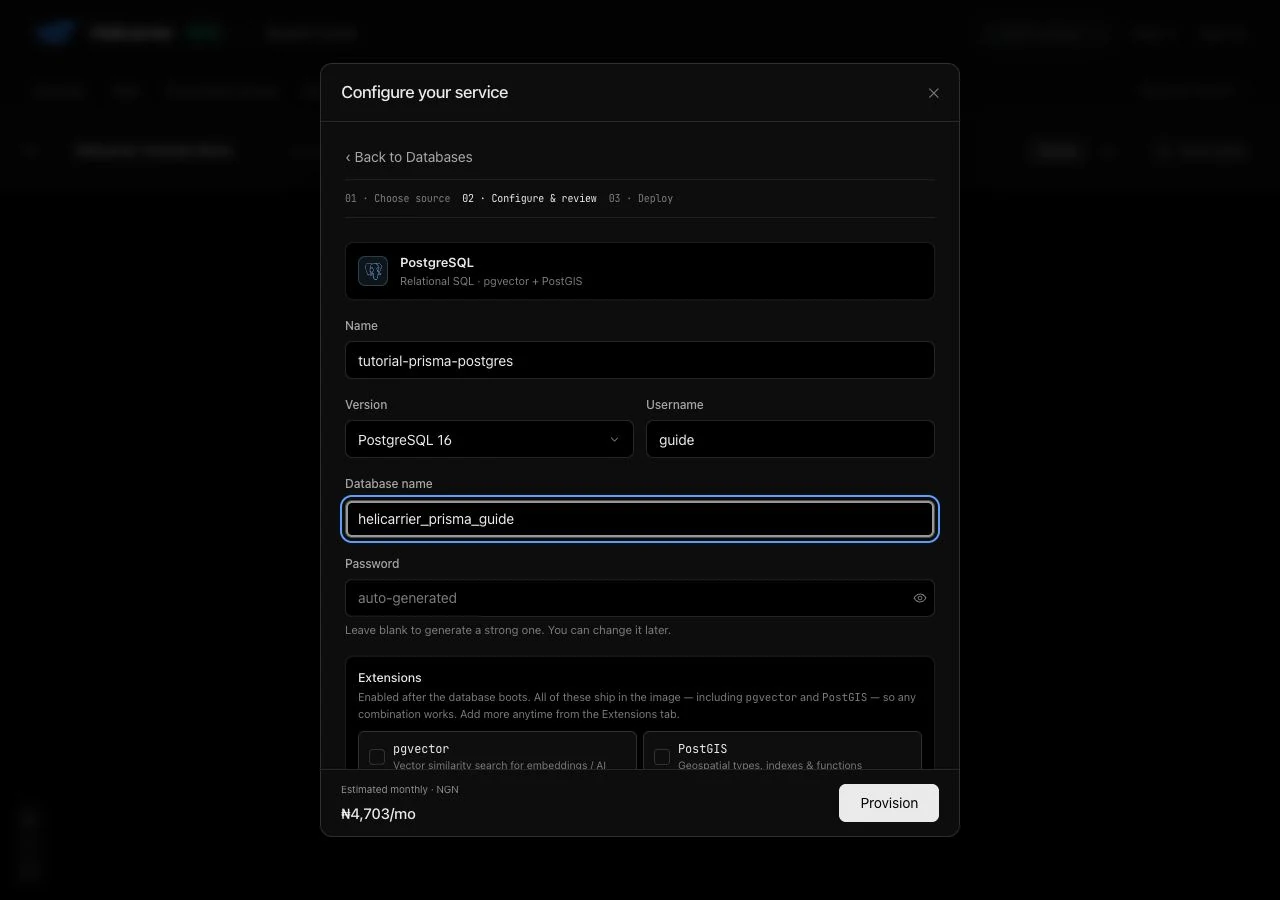
For this small demonstration, choose Heli DB-S1 with 2 GB of storage and Heli S1 for the web app. Standard full-month reference rates are $3.50 for the database and $3 for the app, before optional add-ons. Review your current dashboard prices before creation; these rates are not a production sizing recommendation. See PostgreSQL plans and platform pricing.
Select Provision, then Apply on the canvas. Keep external database access off. In the same project and environment, create a Web service from your GitHub repository, named tutorial-prisma-board, with internal port 3000. Leave the root directory blank for the standalone repository. The included Dockerfile supplies the build and start commands.
Open the app’s Variables & secrets and add a reference from tutorial-prisma-postgres’s Connection URL to DATABASE_URL. This keeps the credential in the service connection rather than your code.
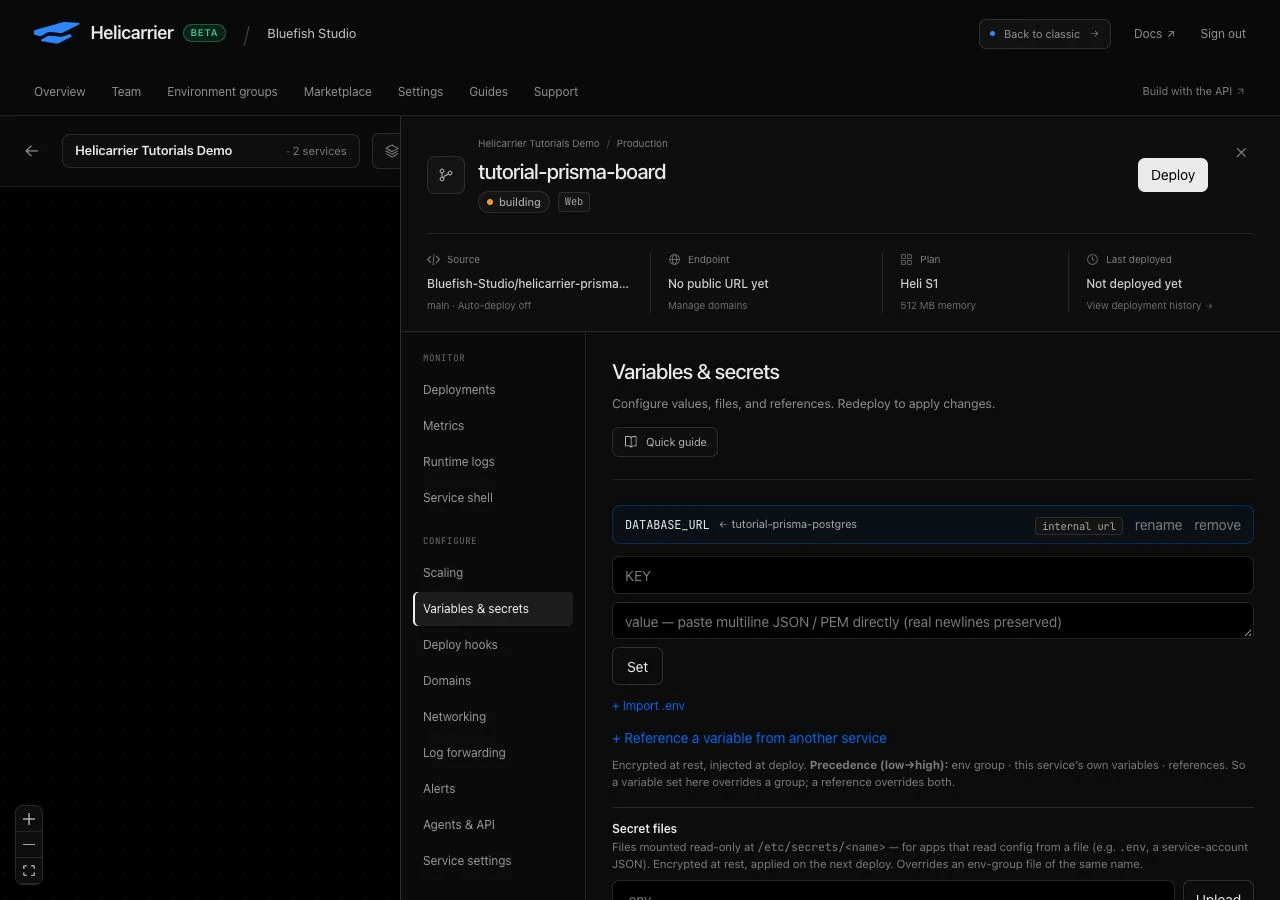
An initial deployment may start before you finish the settings. It is expected to be unready until the database reference and release command are configured. Complete the next step, then deploy the baseline tag explicitly.
2. Release the working baseline
In Service settings, turn Auto-deploy on push off. Under Build settings, select Force Dockerfile, use Dockerfile as its path, and set the release command to:
npm run db:migrateKeep the read-only filesystem enabled. Save the settings, then open Deployments → Deploy a specific ref, enter 01-baseline, and deploy. Using a specific ref does not change the branch the service tracks.
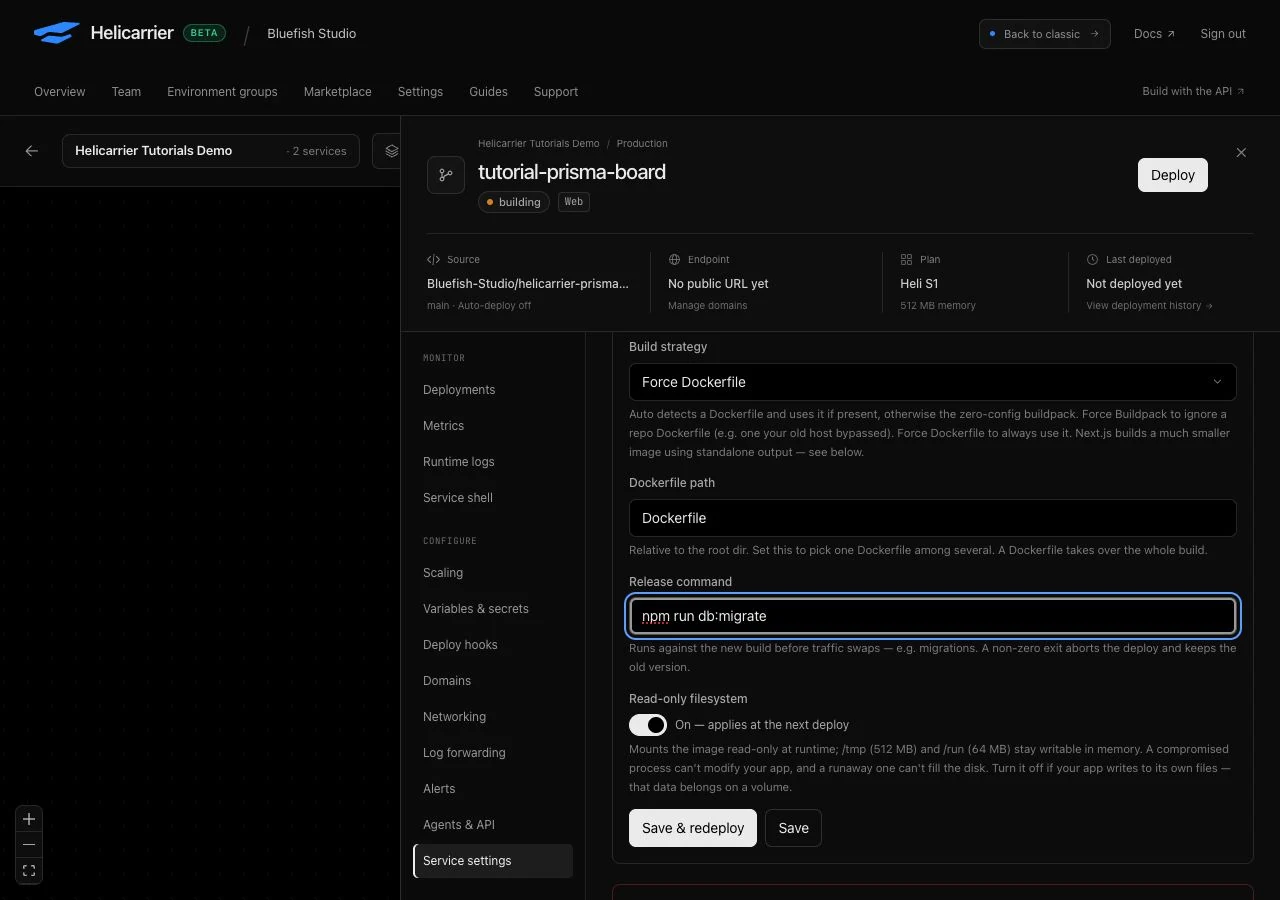
The command wraps prisma migrate deploy. It applies committed migration files and prints sanitized status messages. It does not generate new migrations or detect all schema drift; develop and review new migration files before deployment. See Prisma’s migrate deploy reference.
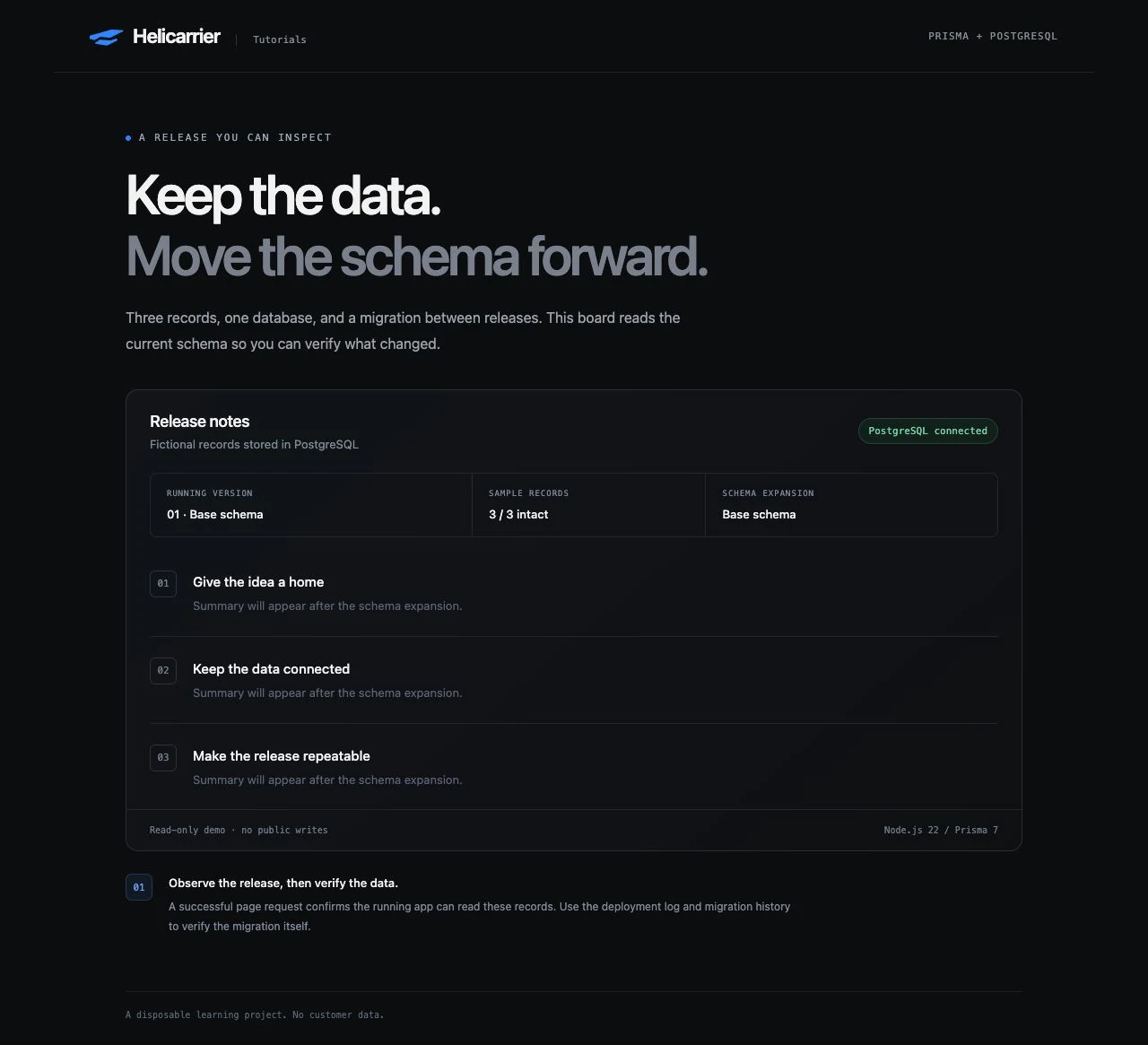
Open the app’s generated URL. Confirm 01 · Base schema, 3 / 3 intact, and PostgreSQL connected. Its /health endpoint must return HTTP 200. This query checks the running app’s required schema; it does not prove that every attempted migration succeeded.
3. Deploy the intentionally broken migration
Use Deploy a specific ref again, this time with 02-failed-migration. Its migration tries to add a required summary column to rows that have no summary:
BEGIN;
ALTER TABLE "guide_release_notes"
  ADD COLUMN "summary" TEXT NOT NULL;
COMMIT;
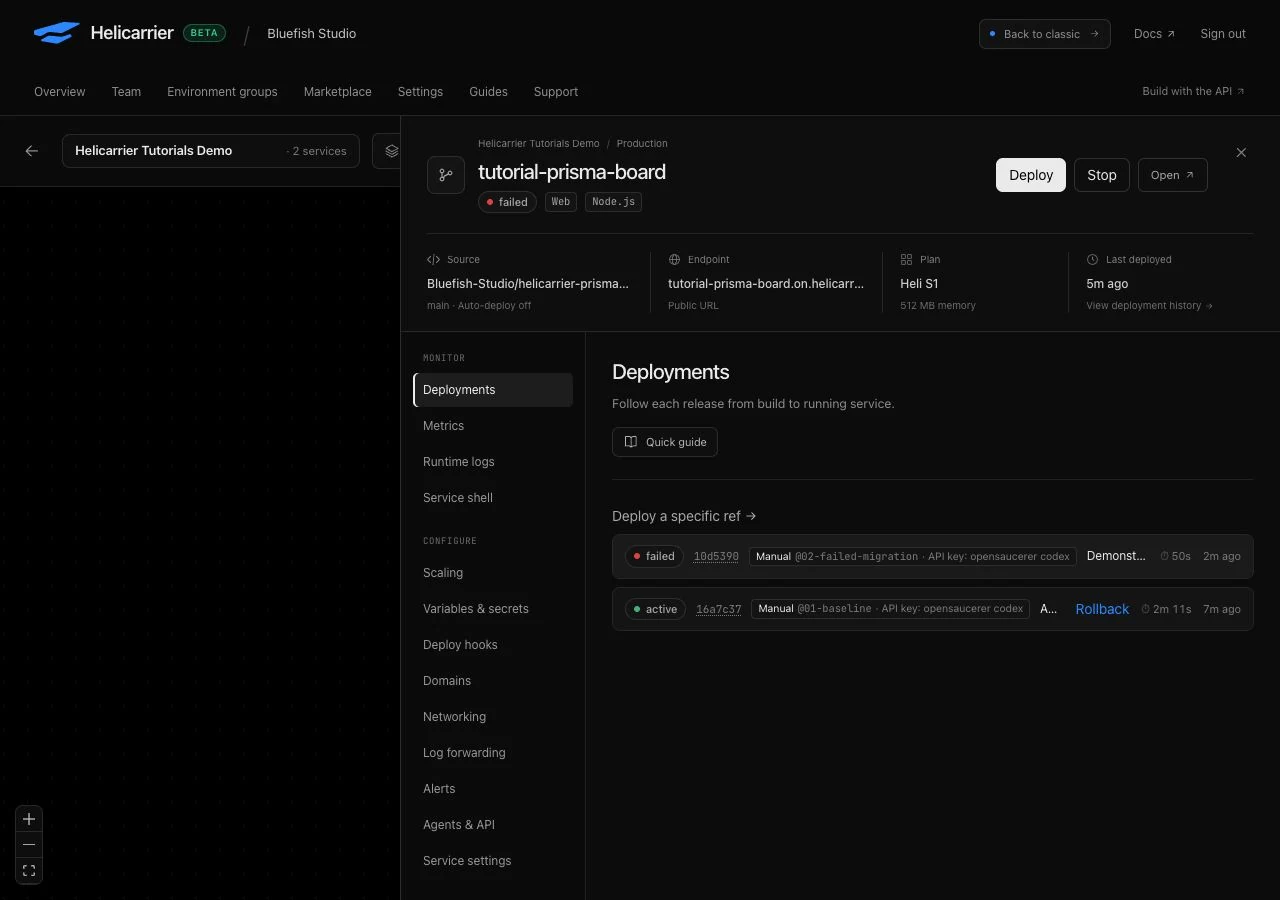
PostgreSQL cannot satisfy that constraint for the existing rows. The command exits unsuccessfully and Helicarrier stops the release before switching traffic to the new app. Prisma may surface P3018 or an aborted-transaction message; a subsequent retry while the failed attempt remains unresolved is blocked with P3009.
Reload the public board. It should still show the baseline and three records. The service’s failed badge describes the latest deployment; verify the active deployment and readiness endpoint to understand what is serving. This particular migration is transactional, and we check below that its schema change rolled back. A release failure alone is not a guarantee that a database was left unchanged.
4. Inspect what actually changed
Open the tutorial PostgreSQL service and its query console. Run these read-only checks:
SELECT id, title FROM guide_release_notes ORDER BY id;

SELECT column_name, is_nullable
FROM information_schema.columns
WHERE table_schema = 'public'
  AND table_name = 'guide_release_notes'
ORDER BY ordinal_position;

SELECT migration_name,
       finished_at IS NOT NULL AS finished,
       rolled_back_at IS NOT NULL AS rolled_back
FROM _prisma_migrations ORDER BY started_at;
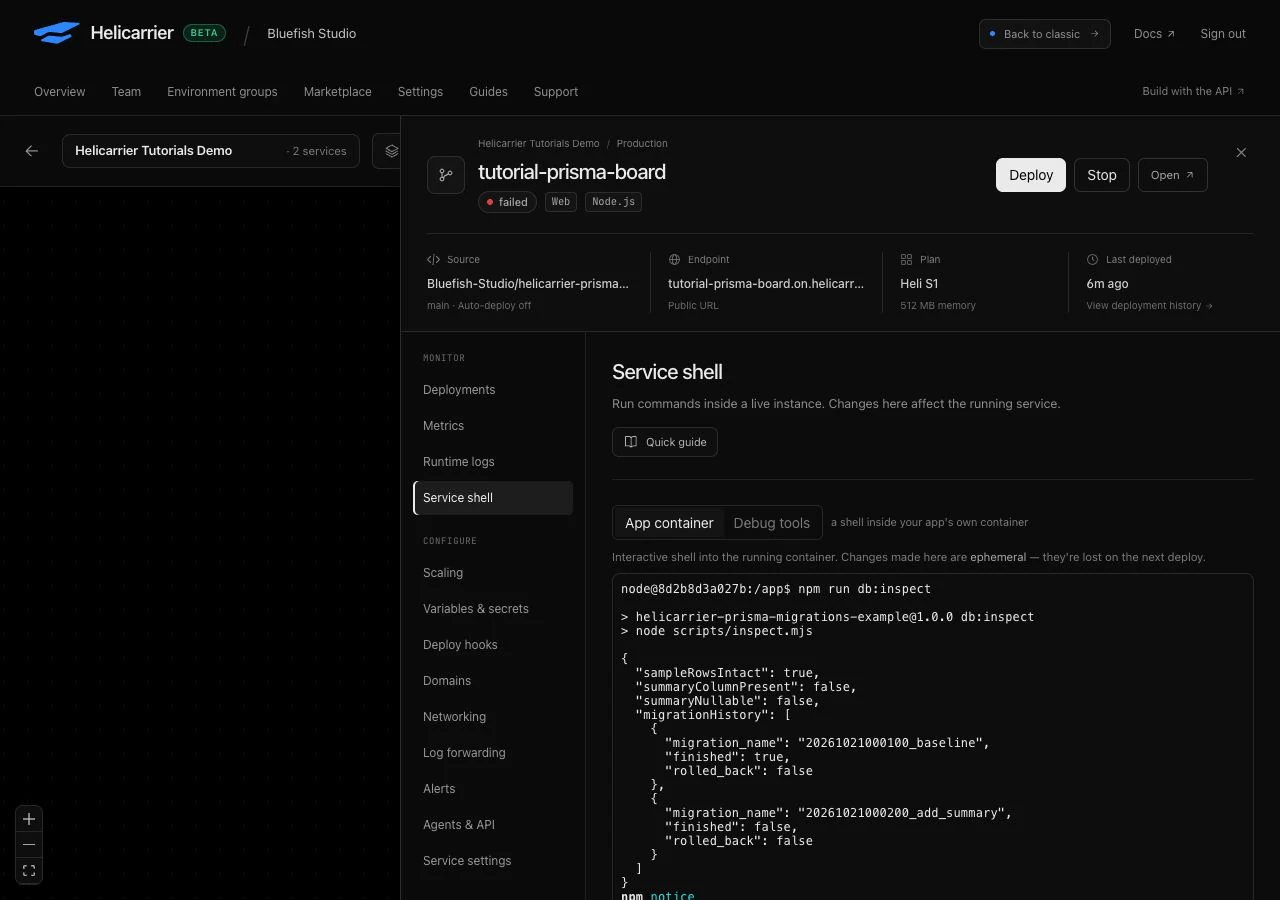
Expect the original three titles, only id and title columns, and two migration attempts: a completed baseline plus an unfinished, not-rolled-back 20261021000200_add_summary. If any of those checks differs, stop. Do not use this exercise’s recovery command to repair an unknown database state.
On an authorized service shell, npm run db:inspect prints the same tutorial checks as booleans and known migration names, without connection details. Keep raw connection strings and private deployment infrastructure out of support messages and screenshots.
5. Apply the reviewed correction
The corrected migration adds summary TEXT, which permits null, and fills in values for the three known sample rows. The new application reads the optional field. Older code can still read its original columns and insert a row without supplying a summary.
For one deployment only, change the release command to:
npm run db:recover-demo && npm run db:migrateSave without deploying the default branch, then deploy 03-add-summary explicitly. The recovery script checks the known rows, columns, and migration history again. Only if they match the expected failure does it run prisma migrate resolve --rolled-back 20261021000200_add_summary. The second command then applies the correction.
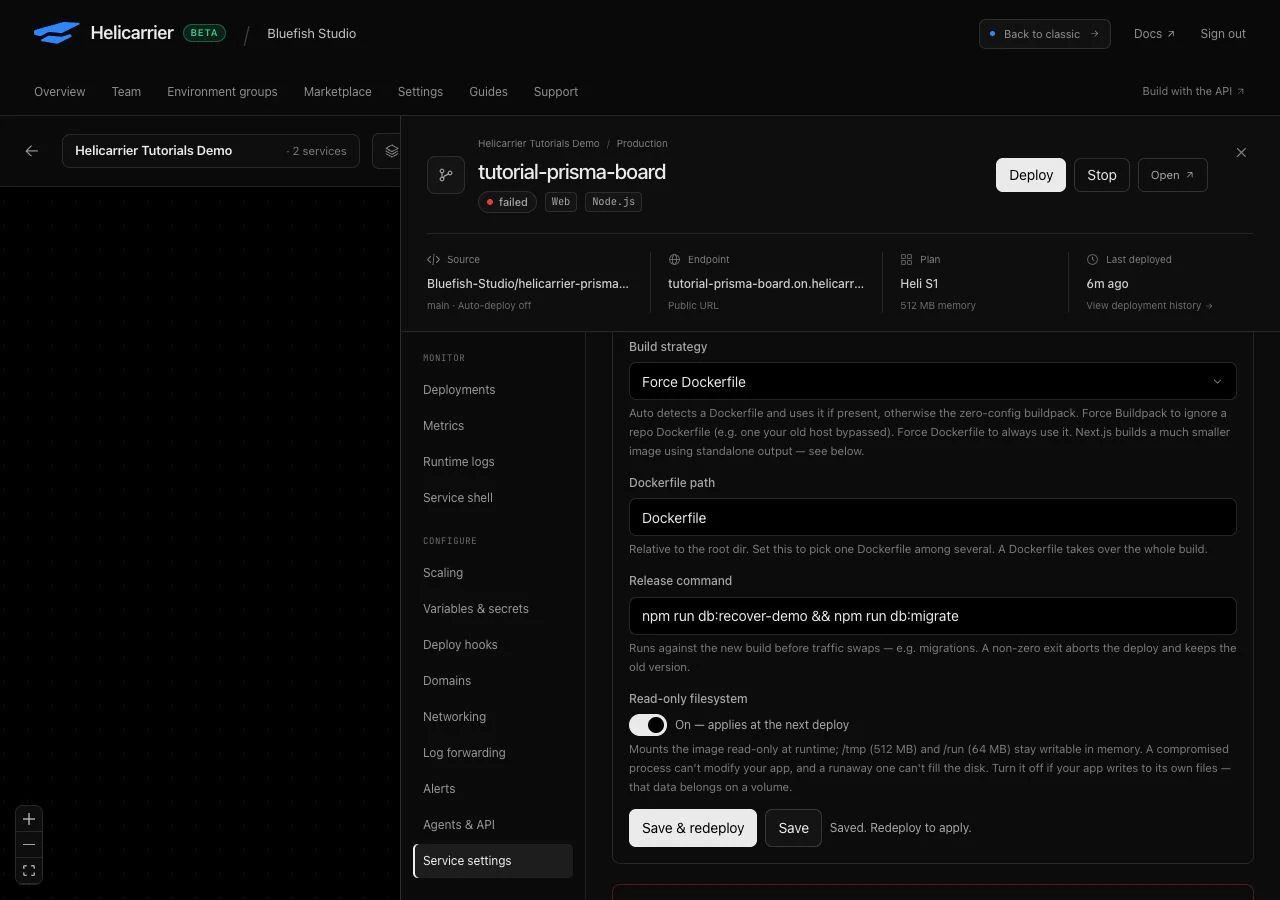
After success, restore npm run db:migrate as the release command. The recovery helper deliberately refuses a database that has already recovered, so leaving it in place would block the next deployment.
6. Verify the expansion and repeat the release
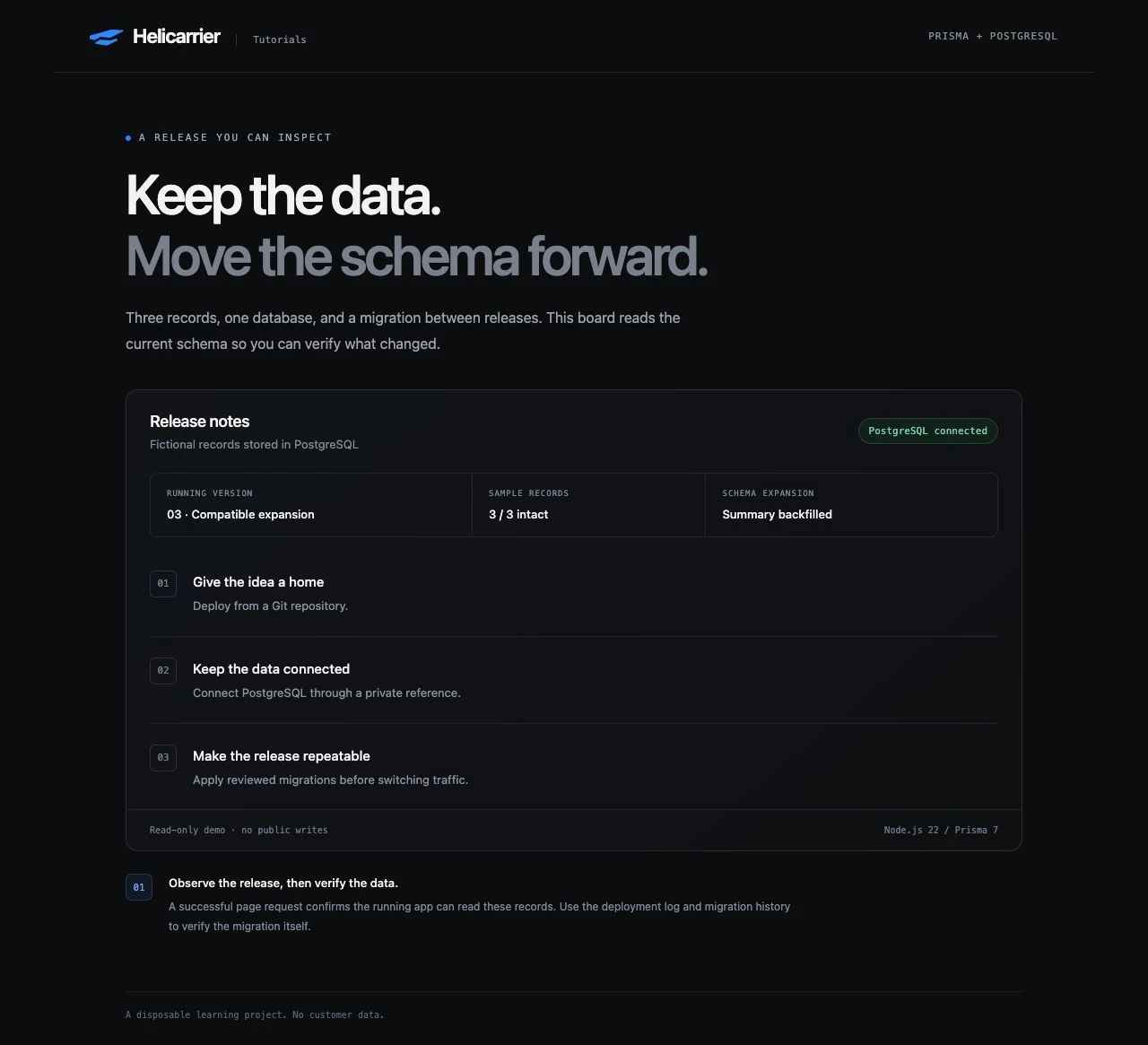
The board should now show 03 · Compatible expansion, Summary backfilled, and three records. The first summary reads “Deploy from a Git repository.” Check /health again, then repeat deployment of 03-add-summary with the normal release command. The migration should be skipped as already applied and the records should remain unchanged.
Confirm that summary remains nullable and migration history now contains the completed baseline, the rolled-back failed attempt, and the completed corrected attempt. For a larger application, plan expansion, batched backfill, and any later constraint changes separately. Remove an old column or require a new value only after every old reader and writer has moved on. See Prisma’s migration customization guidance.
If a step fails
- Tag not found: check that your GitHub copy includes all three tags and that the connected GitHub account can access it.
- Release cannot start: confirm the Dockerfile was used, the Prisma CLI is present in the image, PostgreSQL is active, and
DATABASE_URLis a private reference on the app. P3009after changing the SQL: editing a file does not resolve the failed database attempt. Inspect the actual state and follow the recovery procedure; do not delete migration history rows.- Recovery refused: the helper detected a different state or an unavailable database. Inspect it rather than bypassing the guard. If recovery already succeeded, restore the normal migration command.
- Page opens but readiness fails: the static page can load while its database query fails. Use
/health, the displayed records, and deployment logs together.
Clean up, then apply the pattern carefully
When finished, remove only tutorial-prisma-board and tutorial-prisma-postgres through their service settings. Verify the names first and export anything you intend to keep. Check the project afterward for leftover resources.
For real applications, establish and test a backup and restore path before risky schema changes. Continue with build and release settings, application rollback behavior, or the Next.js and PostgreSQL deployment guide.